
A screenshot feels like one of the safest ways to explain a problem. It is quick, visual, and often easier than writing out a long description. A virtual assistant may send one to show a booking error, confirm that a supplier has replied, explain a CRM issue, or ask a client to approve a change.
The problem is that a screenshot rarely shows only the thing you meant to share. It can include customer names, email addresses, account balances, browser tabs, notifications, internal notes, password hints, and unrelated conversations sitting just outside the area you were looking at. Once it has been sent, you may not be able to take it back.
A simple screenshot rule helps VAs communicate clearly without creating an unnecessary privacy problem.
Screenshots collect more than you notice
When you are focused on one detail, it is easy to overlook everything around it. A calendar screenshot may show a private appointment. A CRM image may include another customer’s name. A message thread may reveal an internal comment that was never meant for the client.
The same problem appears in browser screenshots. An open tab can expose the name of another project. A notification can appear in the corner. An autofill suggestion can reveal part of an email address or login. None of these things may seem dramatic on their own, but they can create awkward conversations and damage trust.
This is especially important when the VA is working across several clients. A screenshot from one account should never give another client even a small look into someone else’s work.
Start by asking who really needs the image
Not every issue needs a screenshot. Before taking one, ask whether a short written update would do the job.
For example, instead of sending a full dashboard image, you could write: “The payment is showing as pending, and I have contacted the provider for confirmation.” That may be enough.
A screenshot makes sense when the client needs to see a visual detail, such as an error message, a layout issue, or a booking option. Even then, share only the smallest useful part of the screen.
The goal is not to avoid screenshots altogether. It is to stop treating the whole screen as though it belongs in every update.
Crop before you send
Cropping is the easiest protection, and it should become routine. If the issue is a single field in a CRM, crop to that field. If it is a calendar conflict, crop to the relevant time slot. If it is a supplier message, crop to the one message that matters.
A tighter image is clearer for the recipient and safer for everyone else. It also makes you look more organized because the client can immediately see what you want them to review.
Do not rely on someone else ignoring the rest of the screen. If the information is visible, it is available to be copied, saved, forwarded, or misunderstood.
Check the edges before the center
Most people check the main thing in a screenshot and forget the edges. The edges are where problems often sit.
Before sending, look at:
- Browser tabs and bookmarks
- Notifications and message previews
- Open sidebars in email, CRM, or project tools
- Customer names, contact details, and reference numbers
- Account balances, payment information, and invoice details
- Internal comments or notes
- Other client folders or files visible in the background
You do not need a complicated checklist every time. A five-second scan is usually enough, although it must be a real scan rather than a quick glance at the center of the image.
Blur information that is not relevant
Sometimes cropping cannot remove everything. You may need to show a full page layout, a conversation thread, or a booking screen where sensitive details sit close to the issue.
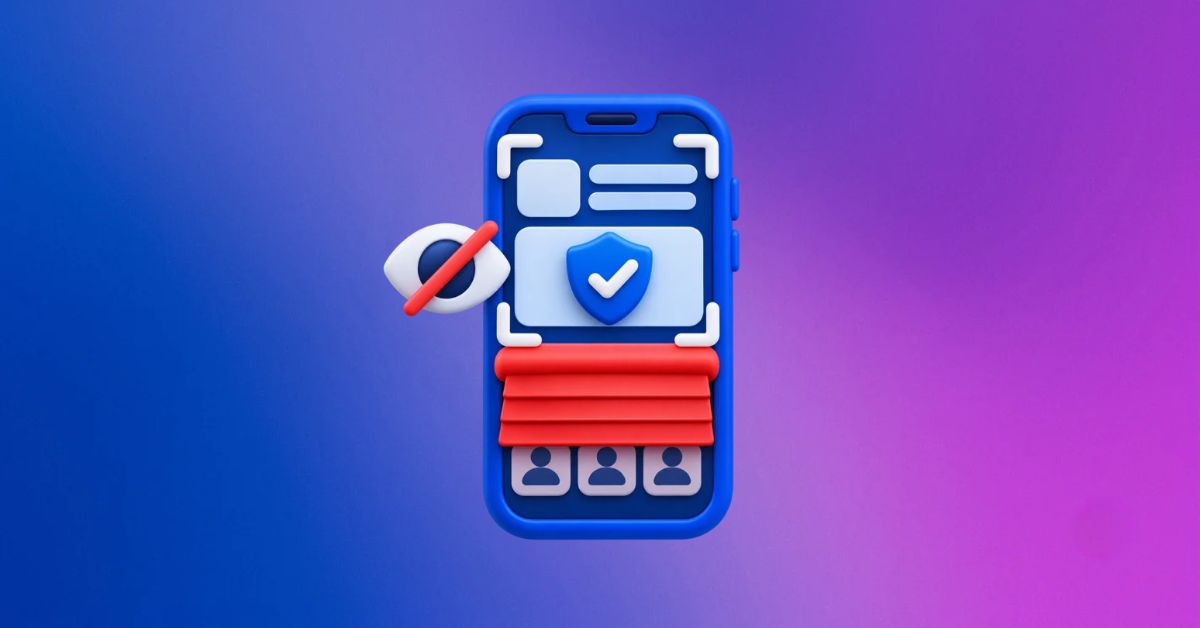
In that situation, blur or cover anything the recipient does not need to see. Names, email addresses, customer IDs, phone numbers, card details, and unrelated messages should be hidden before the image leaves your device.
Be careful with simple drawing tools. A black line drawn over text is usually fine in a flattened image, but do not assume it is secure in every document format. If you are unsure, crop the information out completely or create a fresh image with the sensitive part no longer visible.
Do not use screenshots as proof of access
A screenshot can also create an issue when it proves that a VA is logged into an account in a way they should not be.
A client may ask you to send a screenshot from their personal social media profile, personal inbox, banking app, or another account that is meant for the account holder only. Even if they gave you the login details, that does not mean the arrangement is safe or permitted by the platform.
PA2Assist has already covered the wider legal and practical risks around client access in its guide to client account cleanup. The screenshot rule adds one more layer: even when you are working in an approved system, do not share more evidence of access than the task requires.
Create a clean way to show progress
The best way to reduce screenshot risk is to build better update habits. For recurring work, a short status message may be enough. For example:
“Three suppliers have confirmed. I am still waiting on the remaining two, and I will update you by 3 p.m.”
For a task that needs approval, you can send a focused crop with one sentence explaining what the client should look at.
For technical issues, include the time, the system affected, and what you have already tried. This gives the client useful context without filling their inbox with a full-screen image that may expose unrelated information.
A screenshot is still a client record
Once a screenshot is sent through email, Slack, WhatsApp, or a project platform, it becomes part of the client’s wider communication record. It may be stored, forwarded, downloaded, or reviewed later by someone who was not involved in the original conversation.
That is why the same care you would apply to an email should apply to an image. The fact that it is visual does not make it informal or temporary.
If something would feel inappropriate in a written update, it should not appear accidentally in a screenshot either.
Final thoughts
Screenshots are useful, but they should be treated as a controlled communication tool rather than a quick shortcut. Share only what the recipient needs, crop tightly, check the edges, and blur details that do not belong in the update.
A small habit like this protects client information, avoids embarrassing mistakes, and makes your communication cleaner. The best screenshot is not the one that shows everything. It is the one that explains the issue without exposing anything else.
#VirtualAssistant #ClientPrivacy #DataProtection #RemoteWork #AdminSupport #PA2Assist